3D Recolor
3D Recolor lets you add rich colors to 3D models, making them more vivid and personalized. Whether you are coloring character models or decorations, you can adjust the look quickly.
Feature Overview
The 3D Recolor tool provides multiple coloring methods:
- Paint - Precisely color selected areas
- Select Color - Choose colors from the palette
- Set Base Color - Quickly fill the whole model or uncolored areas
- Palette - Browse a wide range of color swatches
How to Use
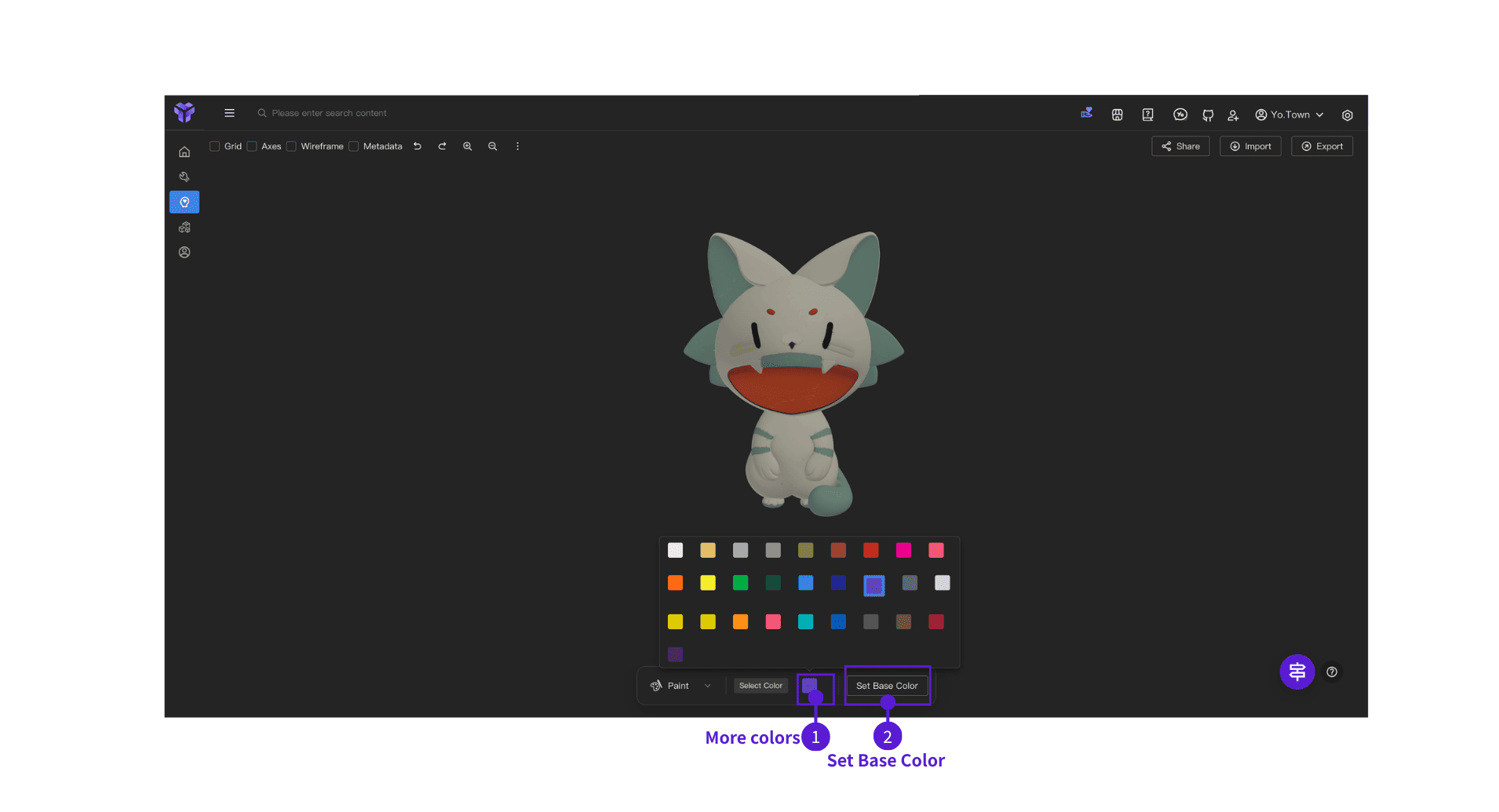
Coloring Steps
-
Select Color - Click your desired color in the color grid
-
Choose Coloring Method
- ⓵ Paint: Pick a color in the palette first, then click the areas on the model you want to color
- ⓶ Set Base Color: Click Set Base Color to fill the entire model or any regions that are not yet colored
FAQ
Q: Can I undo coloring operations?
A: Yes. Use the undo button (↶) in the top toolbar to undo coloring and restore the previous color state.
Q: Can different parts of the model have different colors?
A: Yes. After segmenting the model, use the paint tool to select different regions and apply different colors.
Q: Can I modify colors after coloring?
A: Yes. Select a new color and use the paint tool again to overwrite previous colors.
Q: Why do some areas fail to color?
A: The model surface may have issues. Try AI Segmentation first, or reselect the target area.
Start Using Now
Click the button above to enter Yo.Town Maker's 3D Recolor page and start adding rich colors to your 3D models.