Convert Model
Convert Model lets you export your 3D model in different formats for 3D printing, sharing, or other workflows.
Use Cases
When do you need Convert Model?
- 3D Printing: You need to export the model in a printing format
- Sharing Works: You need to export into a format suitable for online display
- Import into Other Software: You need to convert into formats supported by other software
How to Use
Export Model
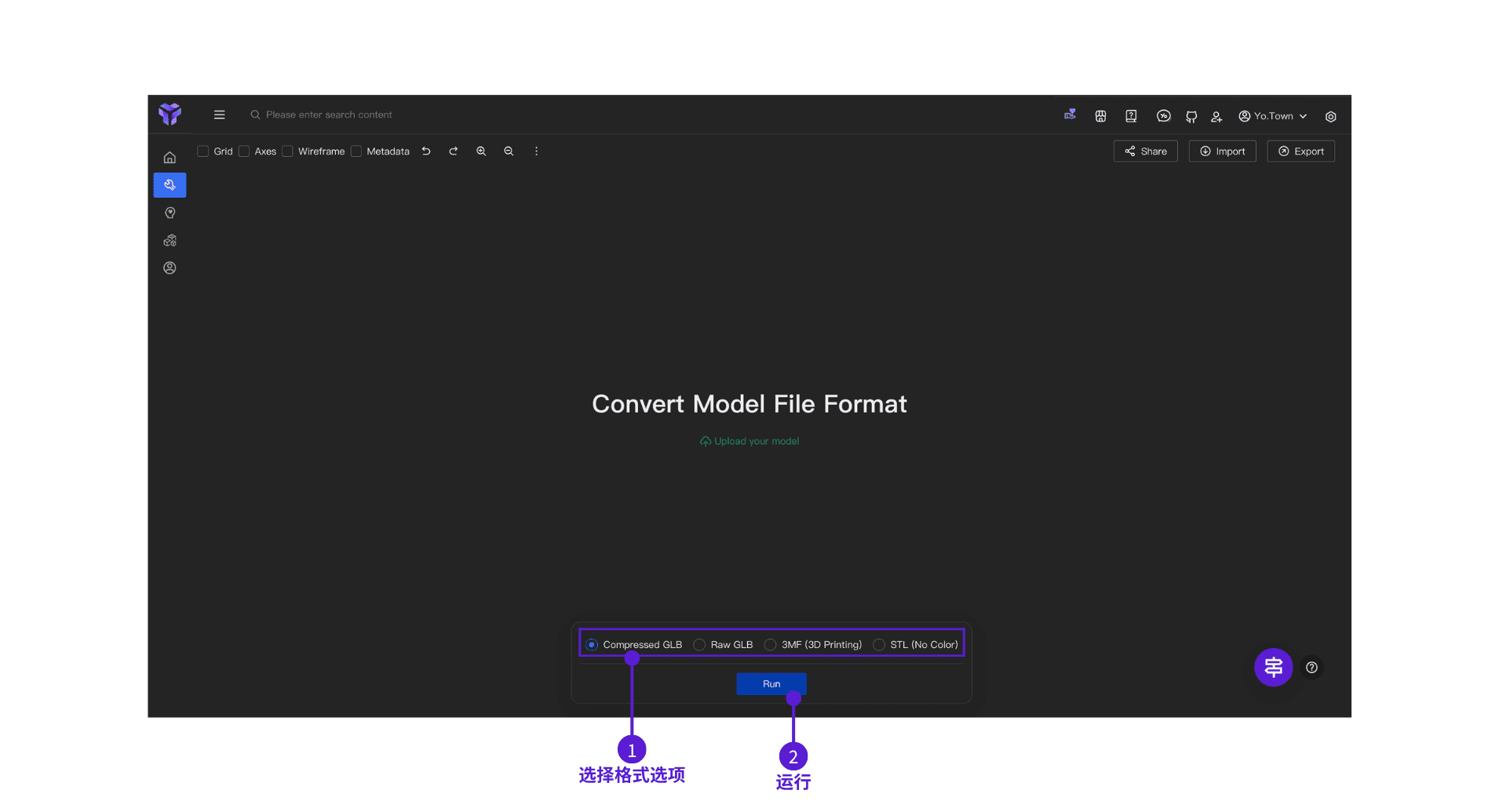
Operation Steps:
- ⓵ Select Format Options: In the bottom control panel, select the specific format variant (for example, Compressed GLB, Raw GLB, 3MF, or STL)
- ⓶ Click Run: After confirming, click the "Run" button. The file will download automatically.
Supported Formats
GLB Format
Suitable for online display, game development, and sharing.
Format Options:
- Compressed GLB (Recommended): Smaller file size, loads faster, suitable for most needs
- Raw GLB: Not compressed, larger file size, suitable for scenes that need further editing
Features:
- Supports colors and textures
- Supported by modern browsers
- Small file size, loads fast
3MF Format
Designed specifically for 3D printing and suitable for color printing scenarios.
Features:
- Supports colors and materials
- Supported by modern slicing software (e.g., BambuStudio, OrcaSlicer)
- Includes complete printing information
STL Format
The most universal 3D printing format with the best compatibility.
Features:
- Supported by almost all 3D software and printers
- Simple file structure
How to Choose a Format
- Online display or sharing: choose Compressed GLB (small file, supports color)
- Color 3D printing: choose 3MF (supports color printing)
- Standard 3D printing: choose STL (no color data)
- Import into other software for editing: choose Raw GLB or 3MF (keeps more information)
FAQ
Q: Where is the file after export?
A: The file will automatically download to the browser's default downloads folder. You can check it in the browser's download history.
Q: Can multiple formats be exported at once?
A: One export supports only a single format. If you need multiple formats, export them separately.
Q: How long does export take?
A: It depends on model complexity; usually from a few seconds to a few minutes.
Q: Can the exported file be imported into other software?
A: Yes. The exported files are standard formats:
- GLB: Blender, Maya, Unity, Unreal, etc.
- 3MF: BambuStudio, OrcaSlicer, Cura, PrusaSlicer, Windows 3D Builder, etc.
- STL: Supported by almost all 3D software
Q: Why doesn't STL support colors?
A: STL only contains the model's shape information and doesn't include color data. If you need colors, choose GLB or 3MF.
Q: What is the difference between Compressed GLB and Raw GLB?
A: Compressed GLB files are smaller but have the same quality, suitable for most uses. Raw GLB files are larger and fit scenes that need further editing.
Q: Which is better for 3D printing, 3MF or STL?
A:
- 3MF: Supports colors and materials; suitable for color printing and modern printers
- STL: If you need maximum compatibility, choose STL
If your printer supports 3MF and you need colors, choose 3MF; if you need maximum compatibility, choose STL.
Start Using Now
Click the button above to enter Yo.Town Maker and start converting your 3D model formats.