AI Segmentation
AI Segmentation helps you quickly and accurately segment 3D models into multiple parts. It combines quick, deep, and manual controls so you can choose the right workflow for each model.
Features
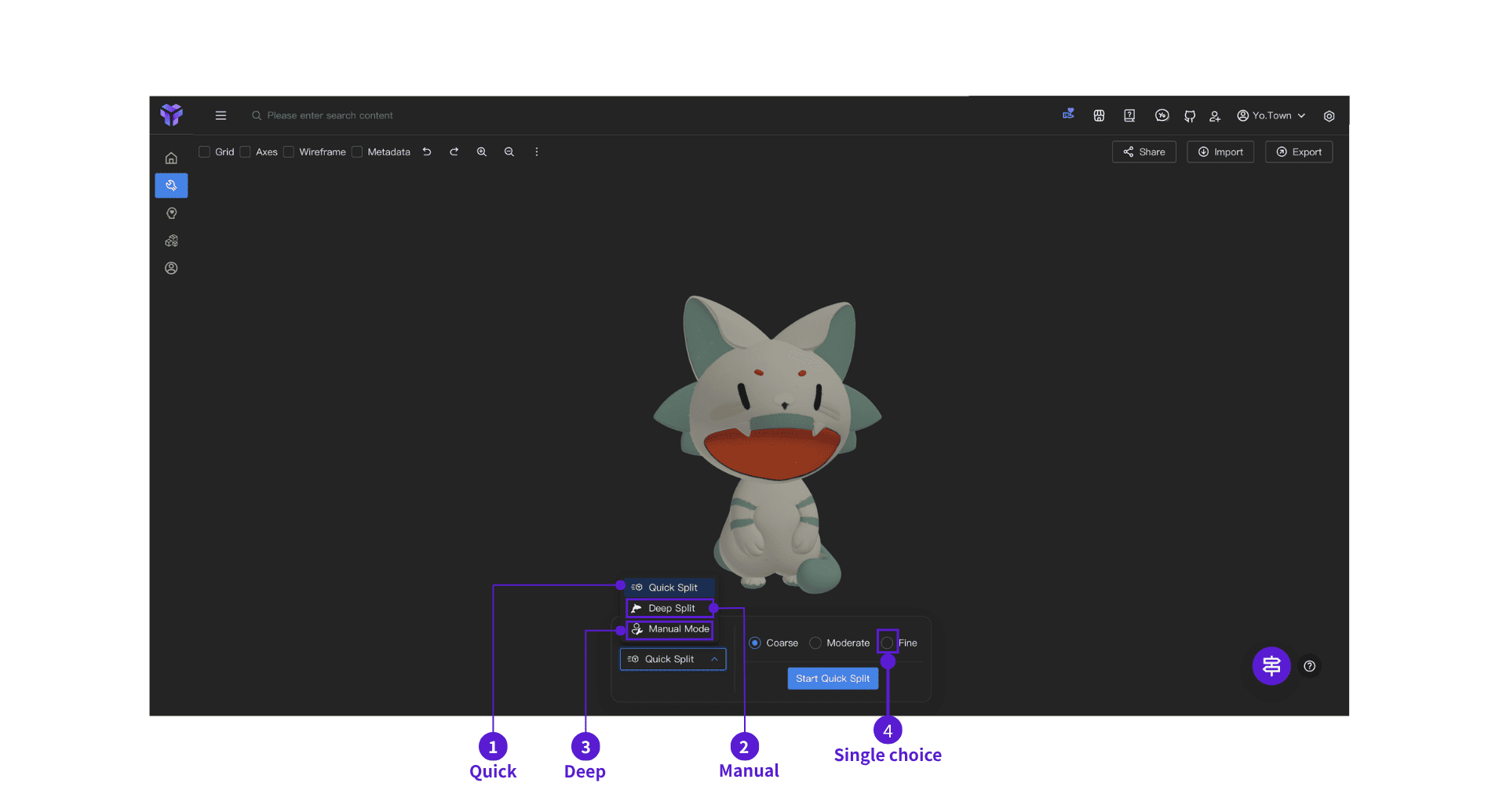
- ⓵ Quick Segmentation: AI automatically identifies and segments the model for most scenarios
- ⓶ Deep Segmentation: Finer control with adjustable depth level
- ⓷ Manual mode: Full manual control—select regions, smart lasso, brush selection, merge regions
- ⓸ Mode selector: Click to pick the segmentation preset or level
Control Panel
The control panel is located at the bottom and contains three main modes: Quick Segmentation, Deep Segmentation, and Manual Mode.
Quick Segmentation
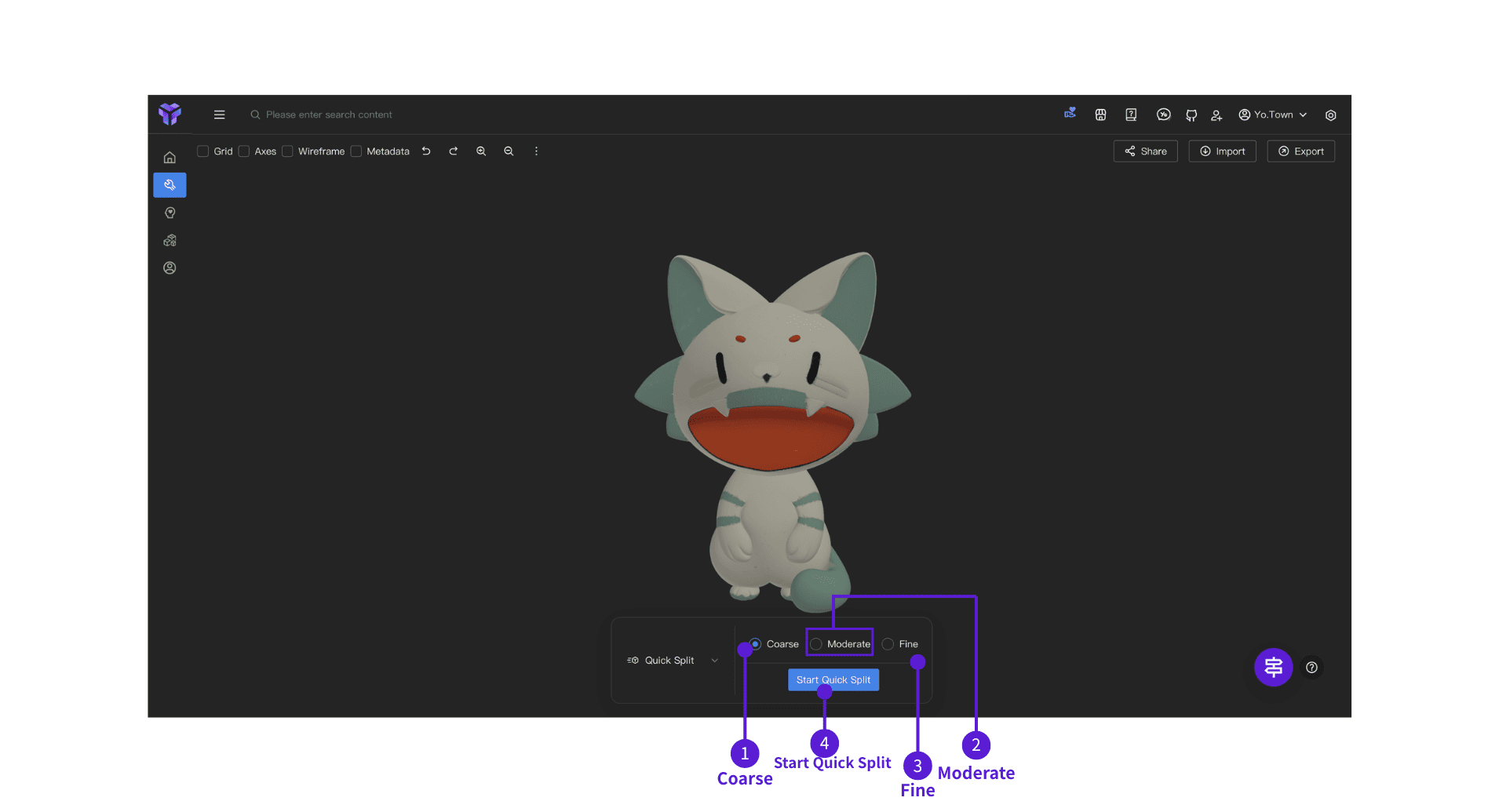
- ⓵ Coarse: Fast processing with larger regions—good for simple models or quick previews
- ⓶ Moderate: Balanced speed and precision—good for most models (recommended)
- ⓷ Fine: Higher precision and more detail—good for complex models
- ⓸ Start Quick Segmentation: After choosing a precision level, click here and let AI segment the model
Deep Segmentation
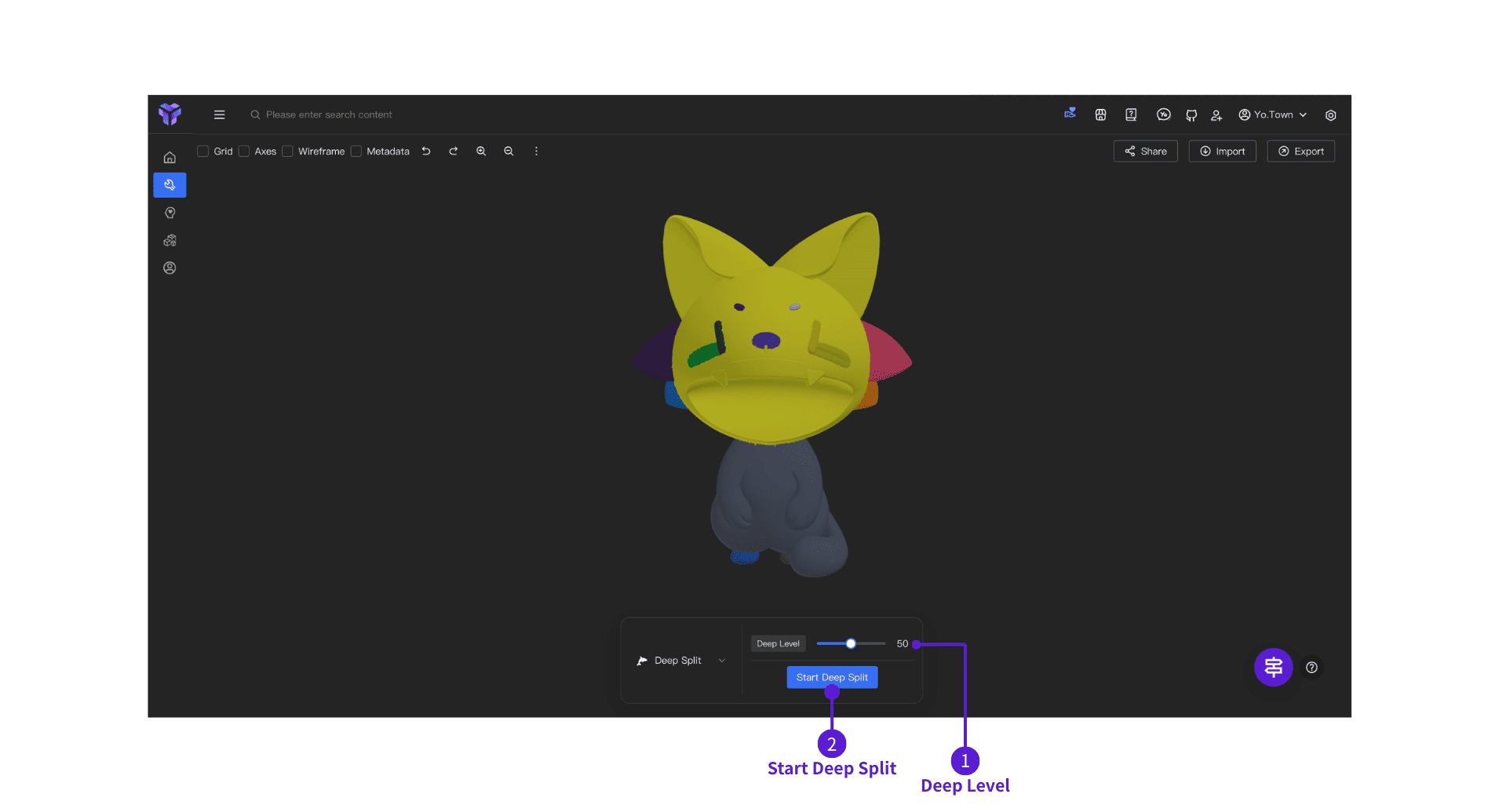
- ⓵ Depth level: Drag the slider (default 50). Higher values yield finer segmentation
- ⓶ Start Deep Segmentation: After adjusting parameters, click here to run
Manual Mode
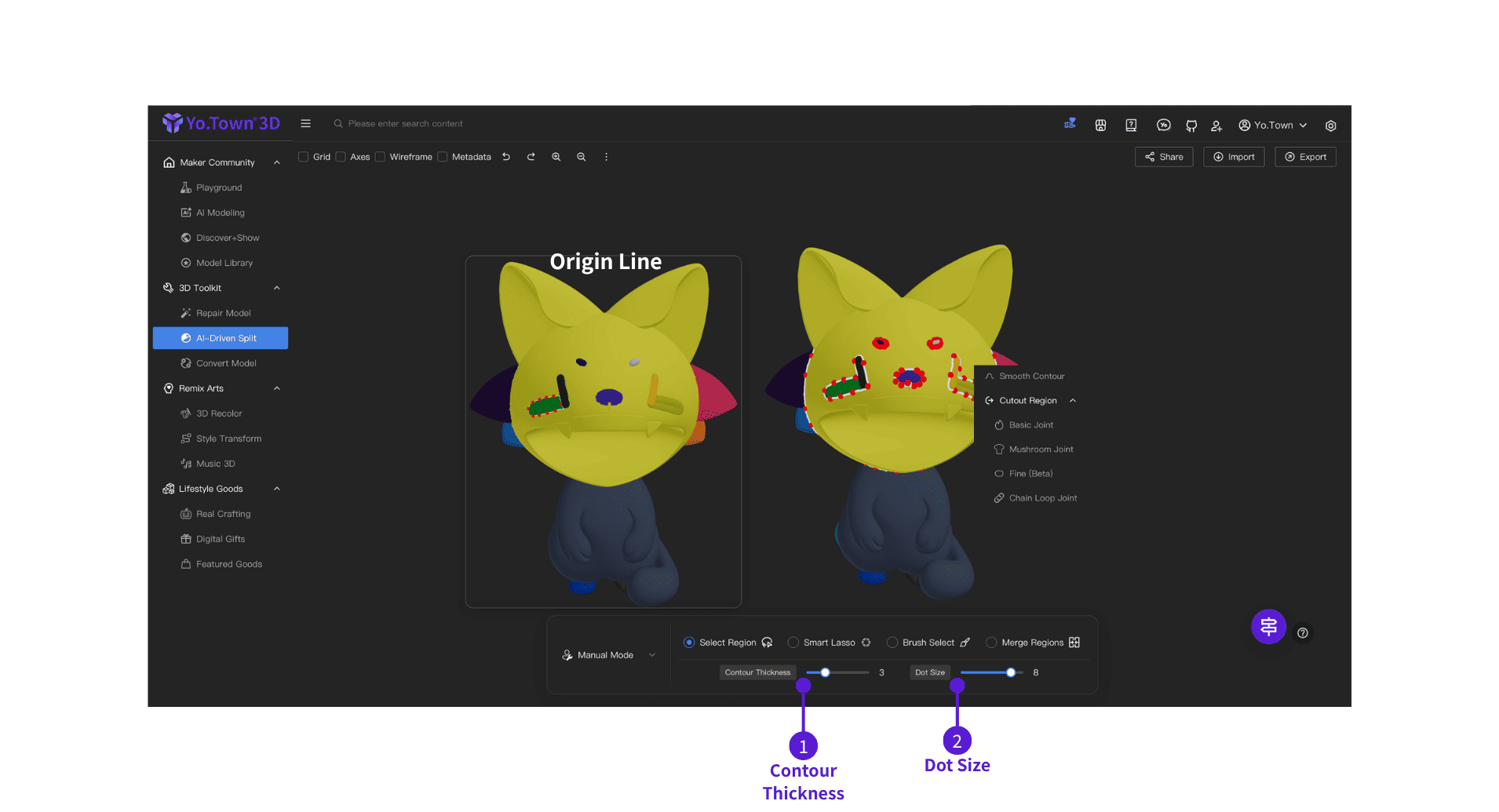
Select Region Click to select regions. You can smooth contours and cut out regions (basic splice / mushroom splice / fine / chain splice).
- ⓵ Contour Thickness: Drag the slider to adjust stroke width
- ⓶ Dot Size: Drag the slider to adjust Dot Size
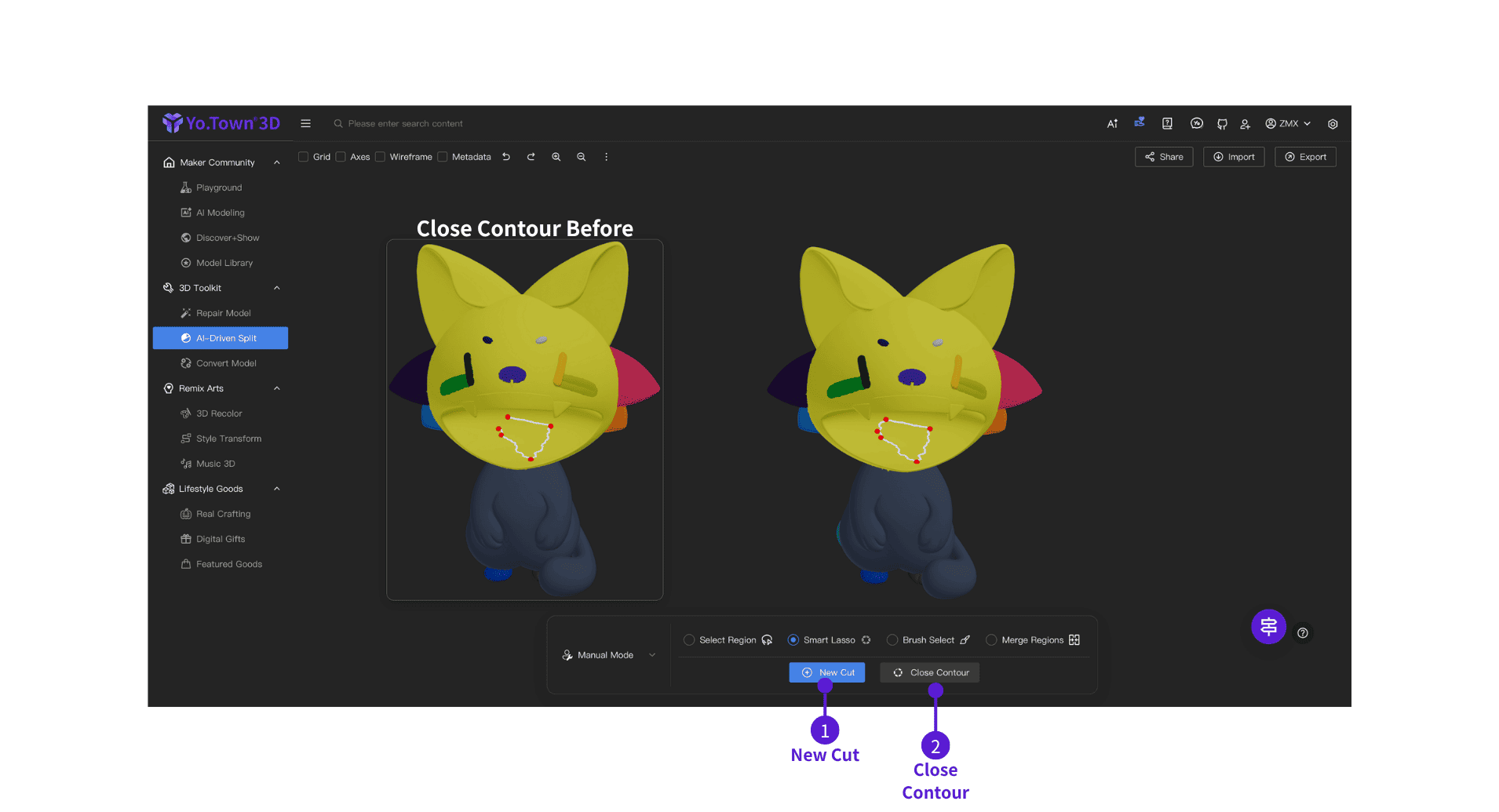
Smart Lasso
- ⓵ New cut: Click to create a new cut region
- ⓶ Close contour: Close the contour to create a new cut region
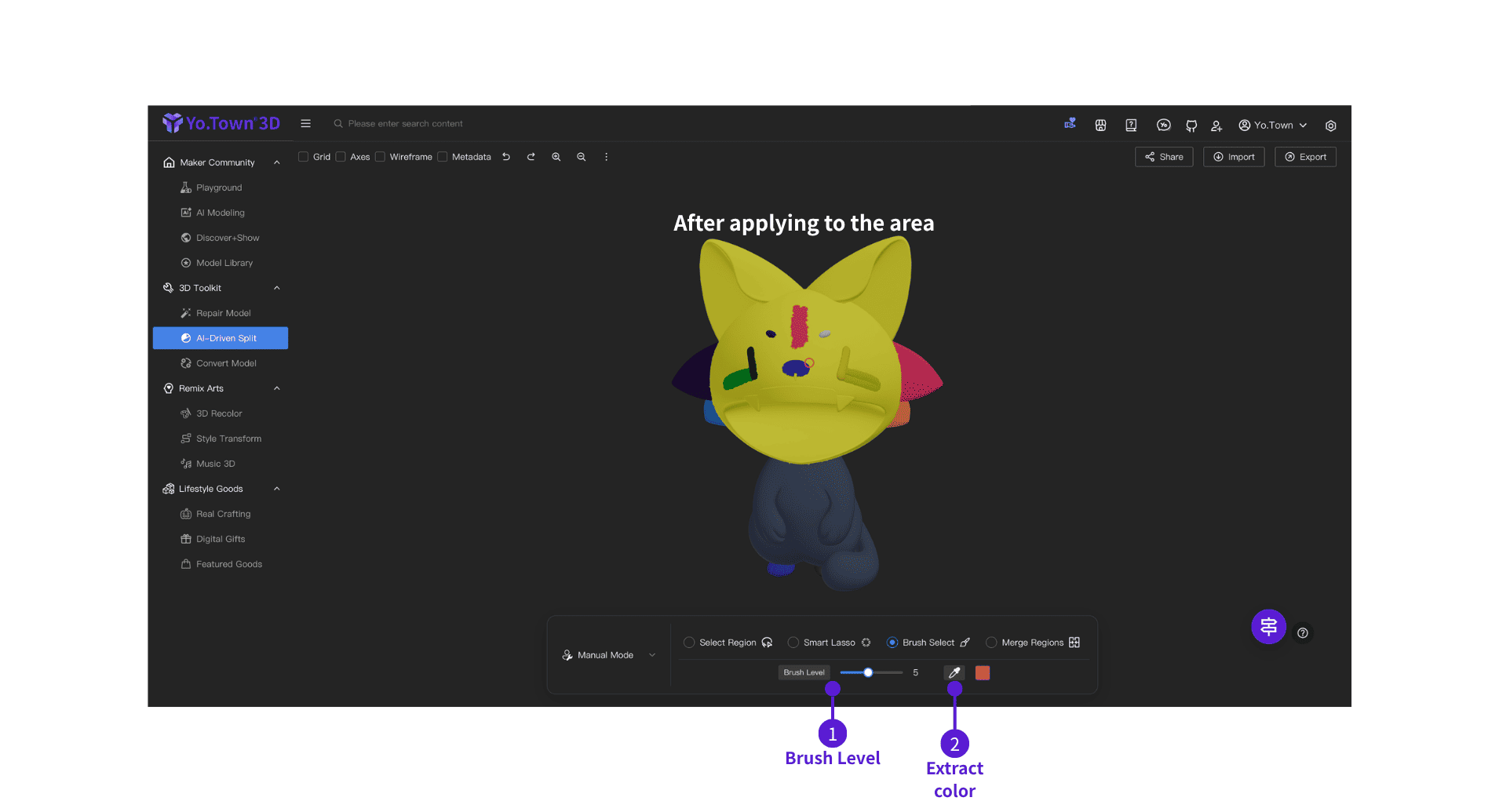
Brush Selection
- ⓵ Brush Level: Drag the slider to adjust brush size
- ⓶ Extract color: Sample different colored regions
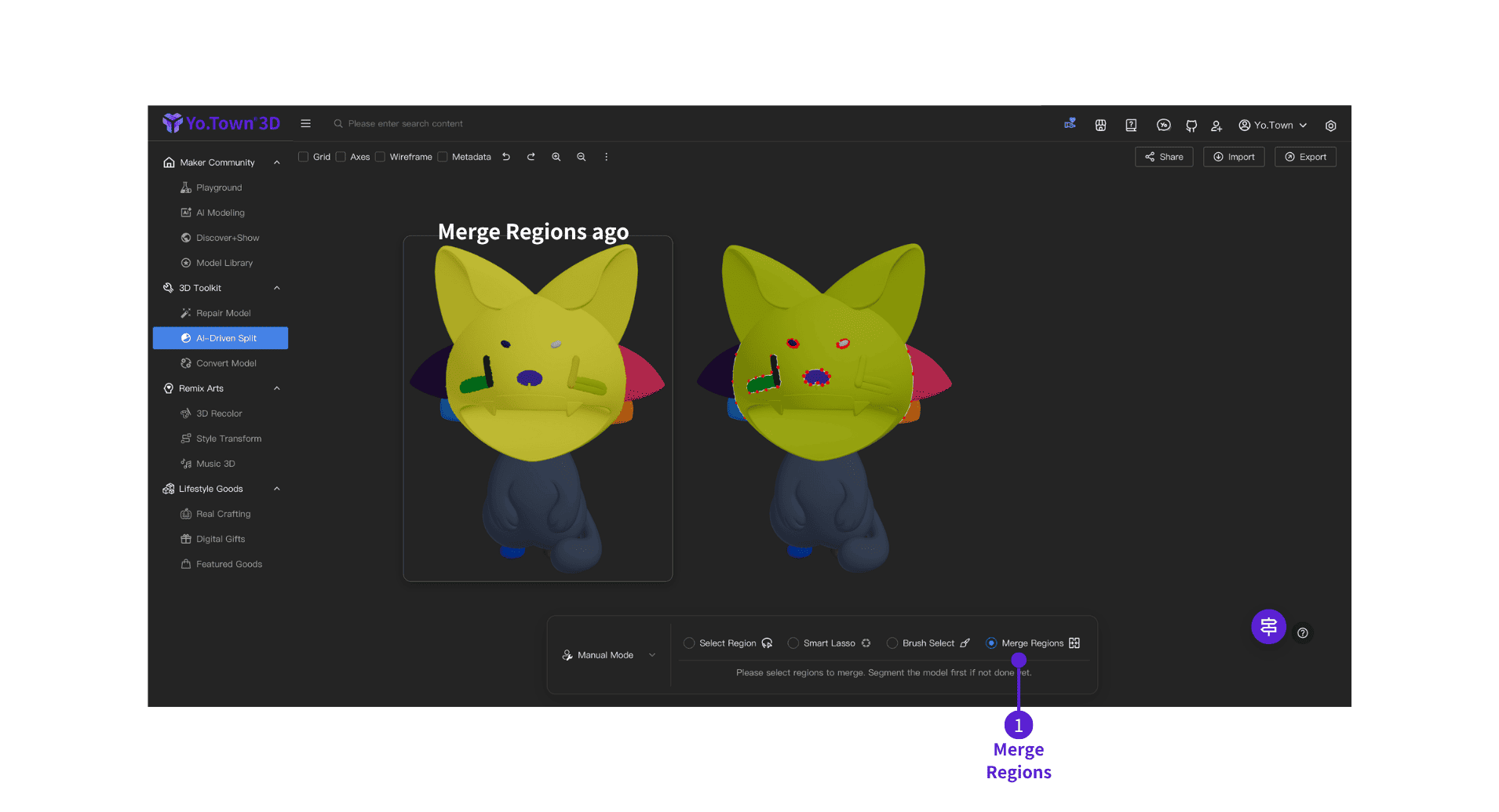
Merge Regions
- ⓵ Merge regions: Select a model block, click Merge Regions, then click other blocks to merge them into one
When splitting parts, start with Fine segmentation, merge the parts you need, then continue with the lasso; lasso-based segmentation usually avoids pits or uneven surfaces.
Video walkthrough
The new UI is still in progress. The video below was recorded with the current (legacy) interface; entry points and button positions may differ slightly, but the core workflow is the same.
FAQ
Q: What should I do if the model is deformed after segmentation?
A: Segmentation operations do not change model shape. If deformation occurs, it may be a display issue. Try refreshing the view or reloading the model.
Q: Can I undo segmentation operations?
A: Yes. Click the Undo button (↶) in the top toolbar to revert segmentation and restore the model to its pre-segmentation state.
Q: Can segmented regions be edited separately?
A: Yes. After segmentation, each region becomes an independent Model Block. You can move, rotate, and scale blocks on this page. For further work such as carving, repair, or recoloring, continue in the corresponding pages like Real Crafting or Repair Model.
Q: What file formats are supported?
A: Supports importing .glb, .3mf, .stl, .obj, .ply, .fbx formats
Q: How long does segmentation take?
A: Processing time depends on model complexity and the selected mode.
Get Started Now
Click the button above to open Yo.Town Maker's AI Segmentation page and start segmenting your 3D models.