Repair
The Repair Model helps you fix various defects in 3D models, including holes, breaks, non-manifold edges, and other issues. This tool provides two modes: quick repair and deep repair, to meet different scenario needs.
Features
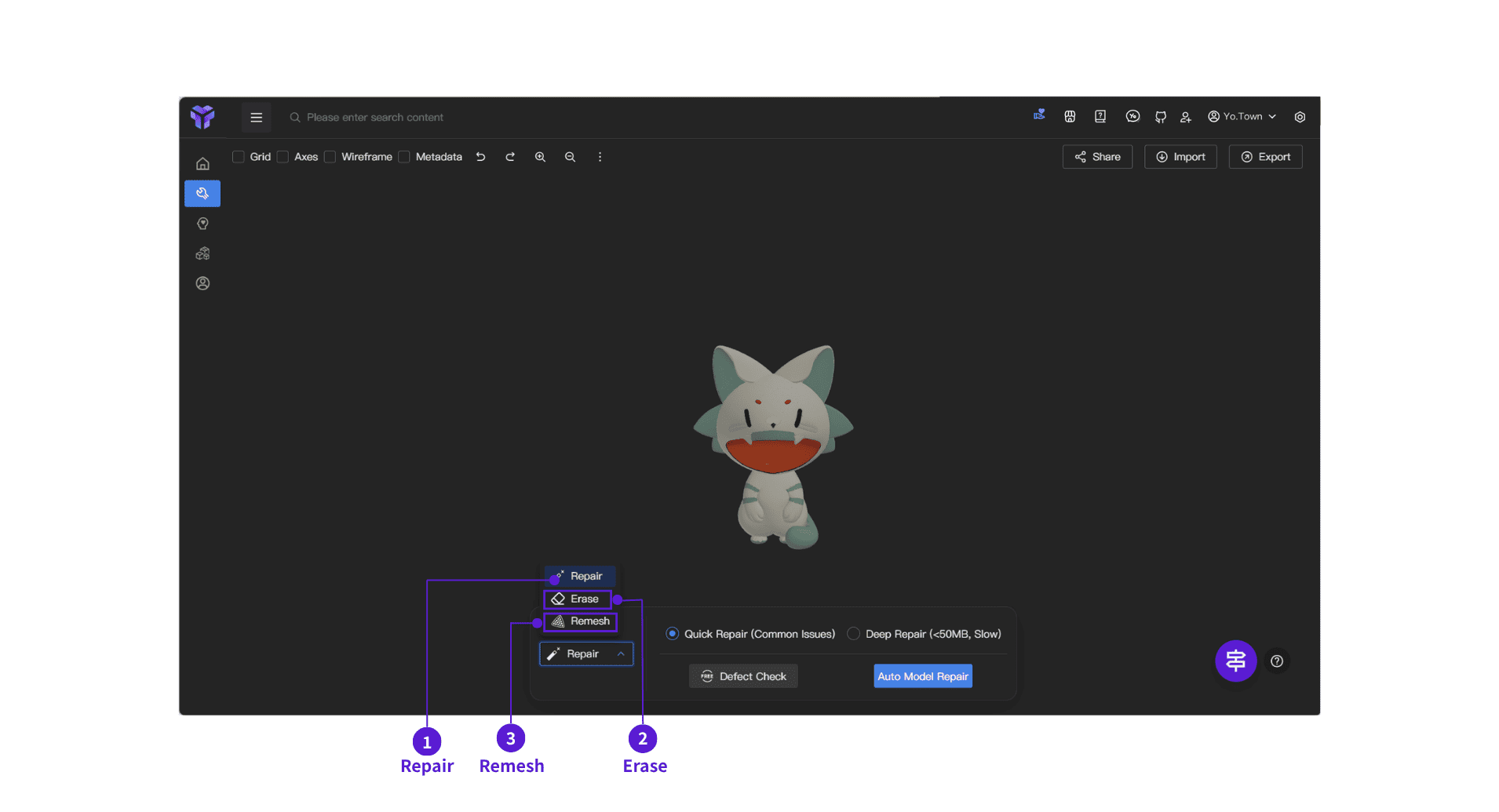
- ⓵ Correction: When you're unsure where problems exist, click this to let the system scan your model
- ⓶ Eraser Tool: Remove unwanted small pieces, supports, or noise points like using an eraser
- ⓷ Mesh Reconstruction: When the model mesh is too messy, or you want the model to be more suitable for printing or rendering, this one-click feature reorganizes the mesh
Control Panel
The control panel is located at the bottom and contains three main tools: Correction, Erase, and Rebuild Mesh.
Correction
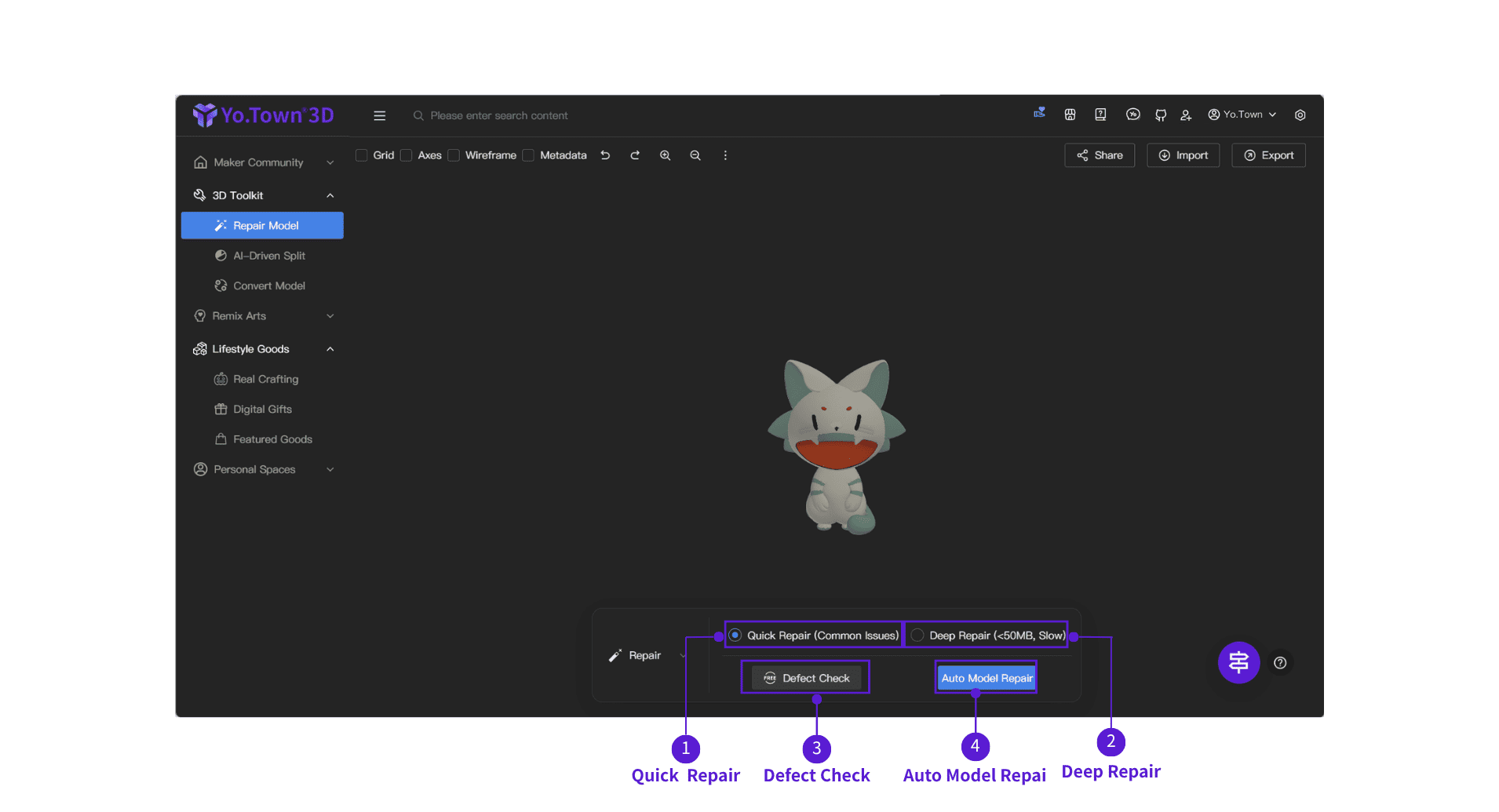
- ⓵ Quick Repair (Common Issues): AI detects and fixes common issues
- ⓶ Deep Repair (<50MB, Slower): Processing time depends on the model
- ⓷ Defect Detection: Click this first to check if the model has any problems
- ⓸ Automatic Repair Model: After selecting the mode, click this and the system will automatically repair your model
If the model is too complex or the file is too large, repair may fail.
Erase
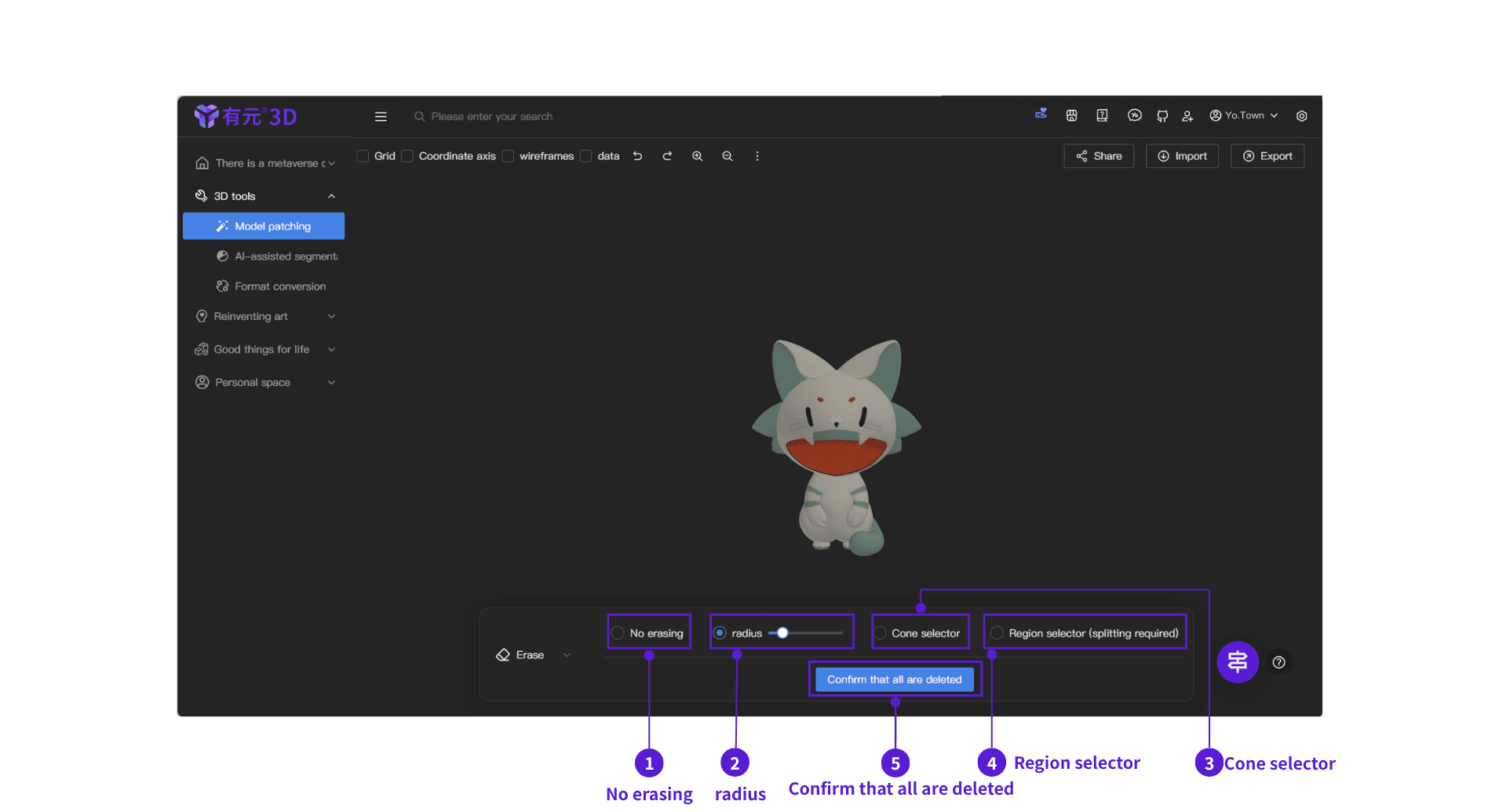
- ⓵ No Erase: Turn off the erase function
- ⓶ Radius: Like using an eraser, adjust the radius size to erase unwanted parts on the model
- ⓷ Frustum Selector: Select the area to delete from the current view
- ⓸ Region Selector (Requires Segmentation): Requires model segmentation first, then select specific regions to delete
- ⓹ Confirm All Deletion: After selecting the parts to delete, click this button to confirm and smoothly delete the selected area.
Rebuild Mesh
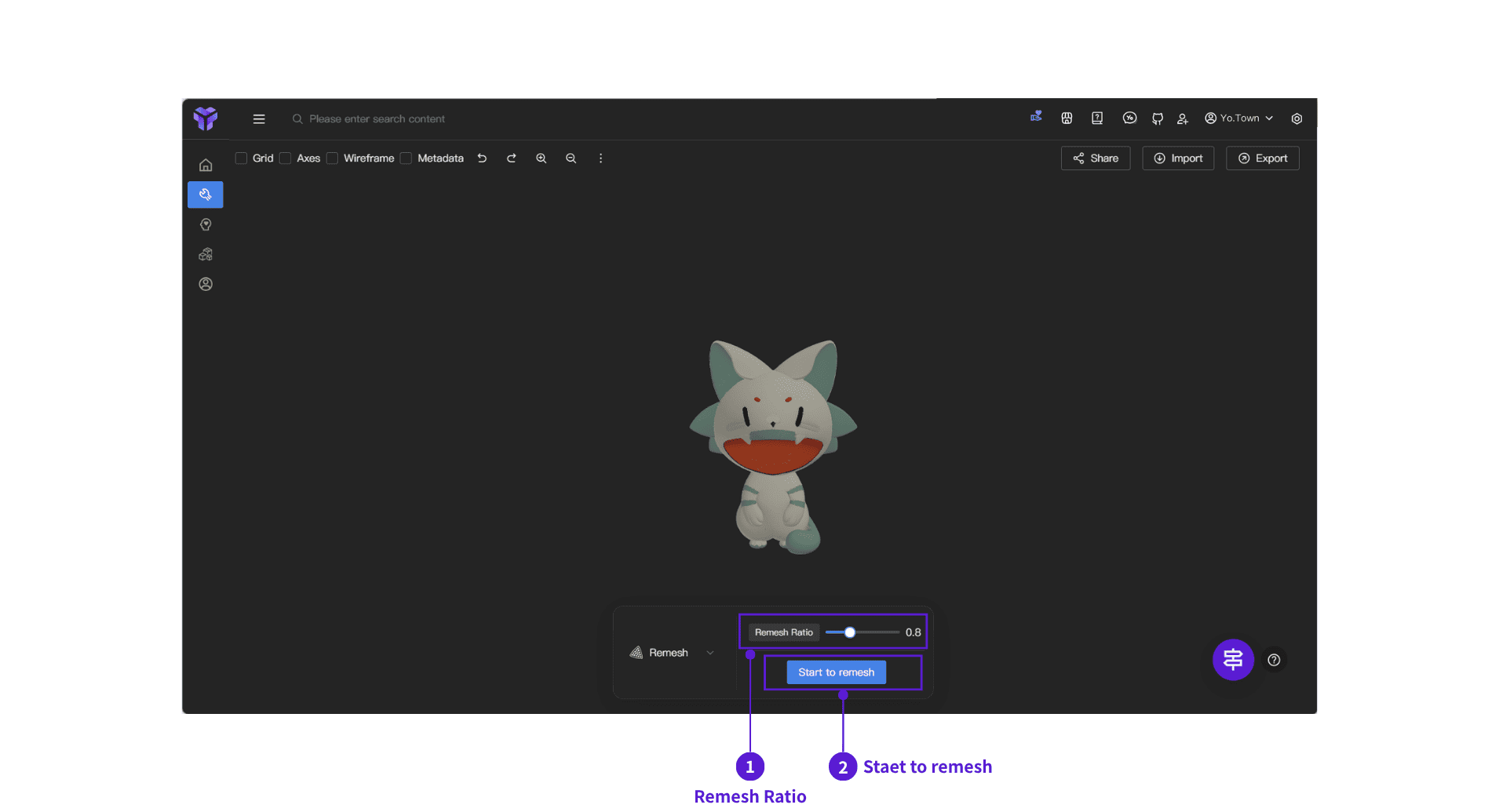
- ⓵ Rebuild Ratio: Drag the slider to adjust (default 0.8). Higher values optimize more thoroughly but may lose details
- ⓶ Start Rebuilding Mesh: After adjusting the ratio, click this and the system will reorganize the model mesh
Rebuilding mesh will lose model colors. Save the model first.
FAQ
Q: What should I do if the model is deformed after repair?
A: You can try reducing the rebuild ratio or using quick repair mode. If the problem is serious, it's recommended to use the eraser tool to manually clean up before repairing again.
Q: How long does deep repair take?
A: Processing time depends on model complexity and file size.
Q: Can I undo repair operations?
A: You can use the undo button (↶) in the top toolbar to undo the previous operation.
Q: What file formats are supported?
A: Supports importing .glb, .3mf, .stl, .obj, .ply, .fbx formats
Get Started Now
Click the button above to directly enter Yo.Town Maker's Repair Model page and start fixing your 3D models.