Playground
Playground is Yo.Town's interactive 3D modeling workspace, providing complete 3D model creation, editing, and management features. Here, you can freely create and edit models, and experience various 3D tools.
Features
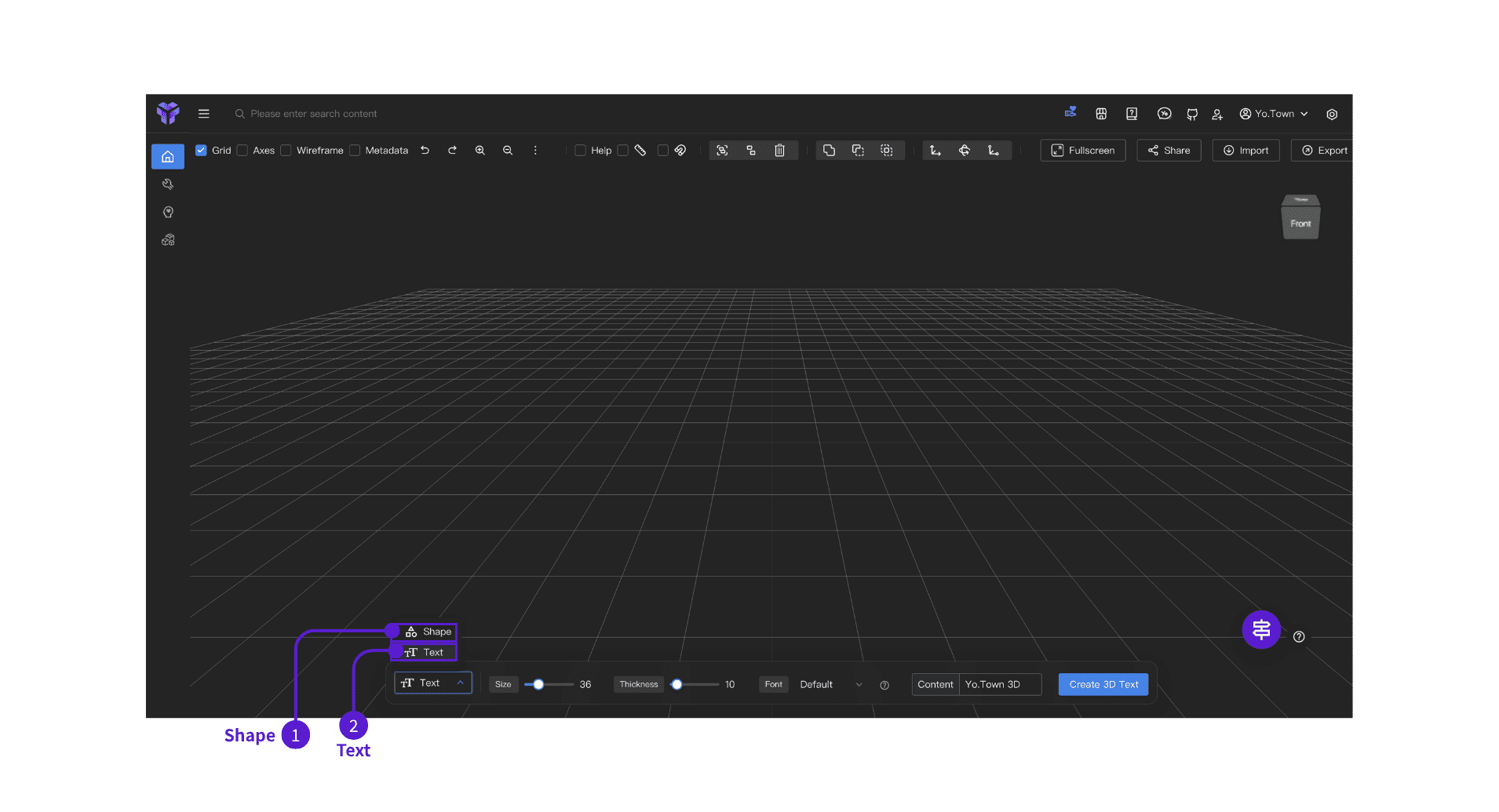
- ⓵ Text: Add text and set text size, thickness, font and other properties.
- ⓶ Geometry: Add various shapes such as cubes, spheres, cylinders, etc.
Control Panel
The control panel is located at the bottom. The first item is a dropdown selector that displays different content based on the selected dropdown title.
Help Tools
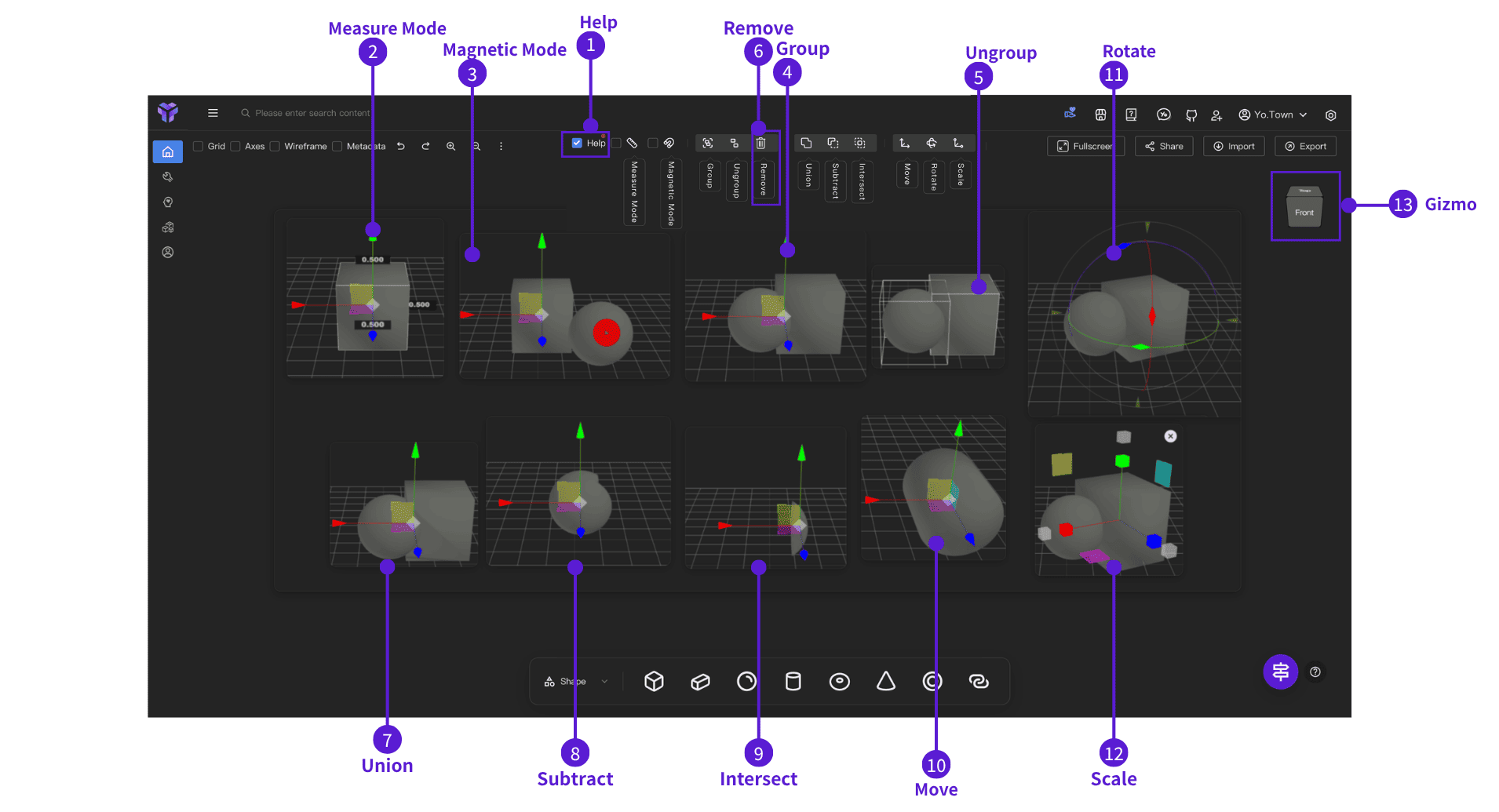
- ⓵ Help: Show/hide the help panel with feature descriptions and guides
- ⓶ Measure Mode: Measure distances, edges, and model dimensions
- ⓷ Magnetic Mode: When enabled, moving objects snaps them to other objects or the grid for precise alignment
- ⓸ Group: Group multiple selected objects as one for unified transform
- ⓹ Ungroup: Split a grouped object back into independent parts
- ⓺ Remove: Delete the selected object
- ⓻ Union: Boolean union, merge overlapping bodies into a new one
- ⓼ Subtract: Boolean difference, subtract later objects from the first
- ⓽ Intersect: Boolean intersection, keep only the overlapping region
- ⓾ Move: Enable translate gizmo to move along axes/planes
- ⑪ Rotate: Enable rotate gizmo to rotate around axes
- ⑫ Scale: Enable scale gizmo to change object size
- ⑬ Gizmo: Free rotation 3D scene viewing angle, viewing model each angle
Text Tool
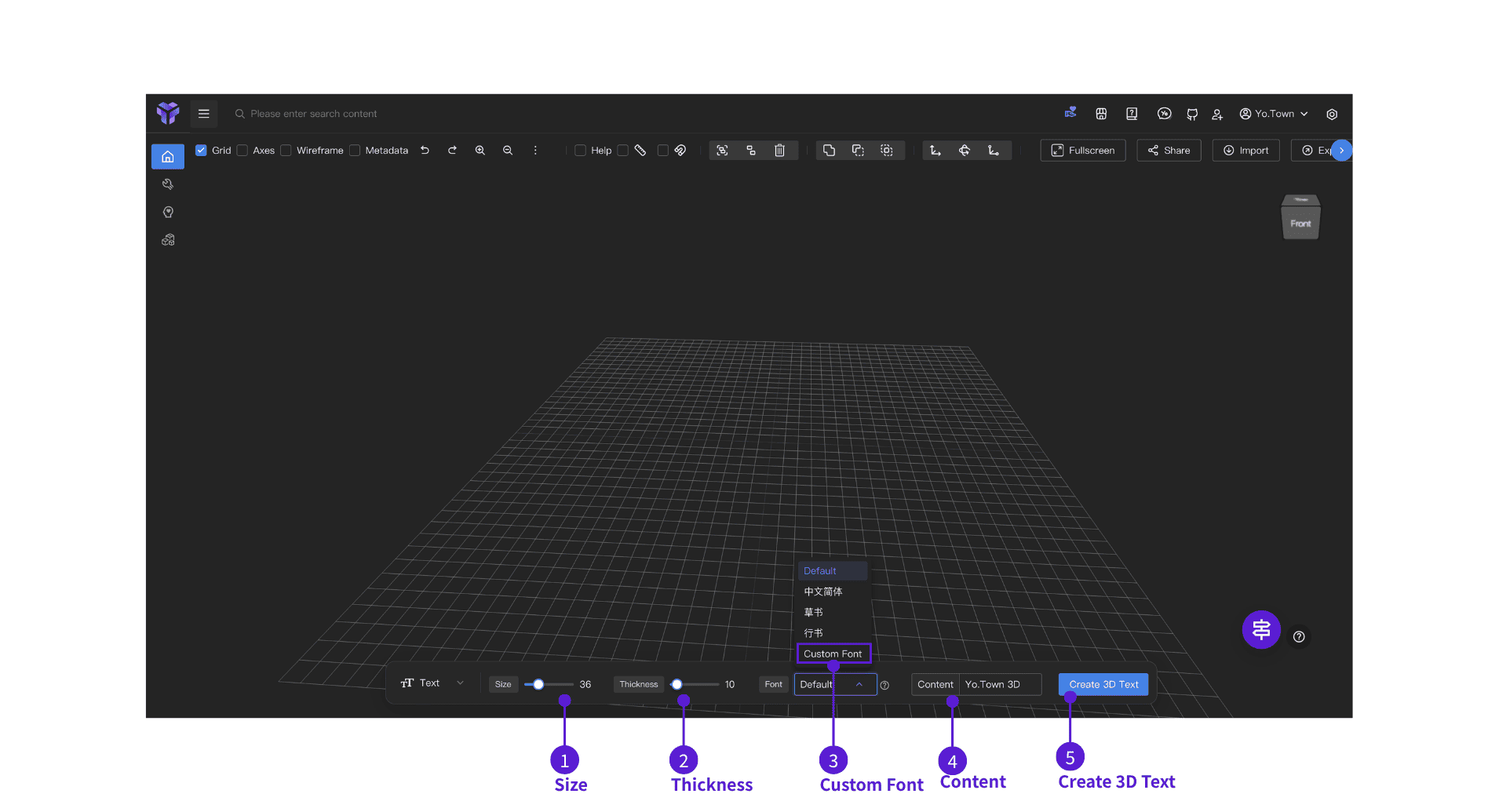
When "Text" is selected, it displays:
- ⓵ Size: Adjust text size (default 36)
- ⓶ Thickness: Adjust text thickness (default 10)
- ⓷ Font: Select font (Running Script, Regular Script, Song Typeface, Bold, etc.), click "Custom Font" to upload custom fonts
- ⓸ Content: Enter the text to create
- ⓹ Create 3D Text: Click button to generate 3D text model
Geometry Tool
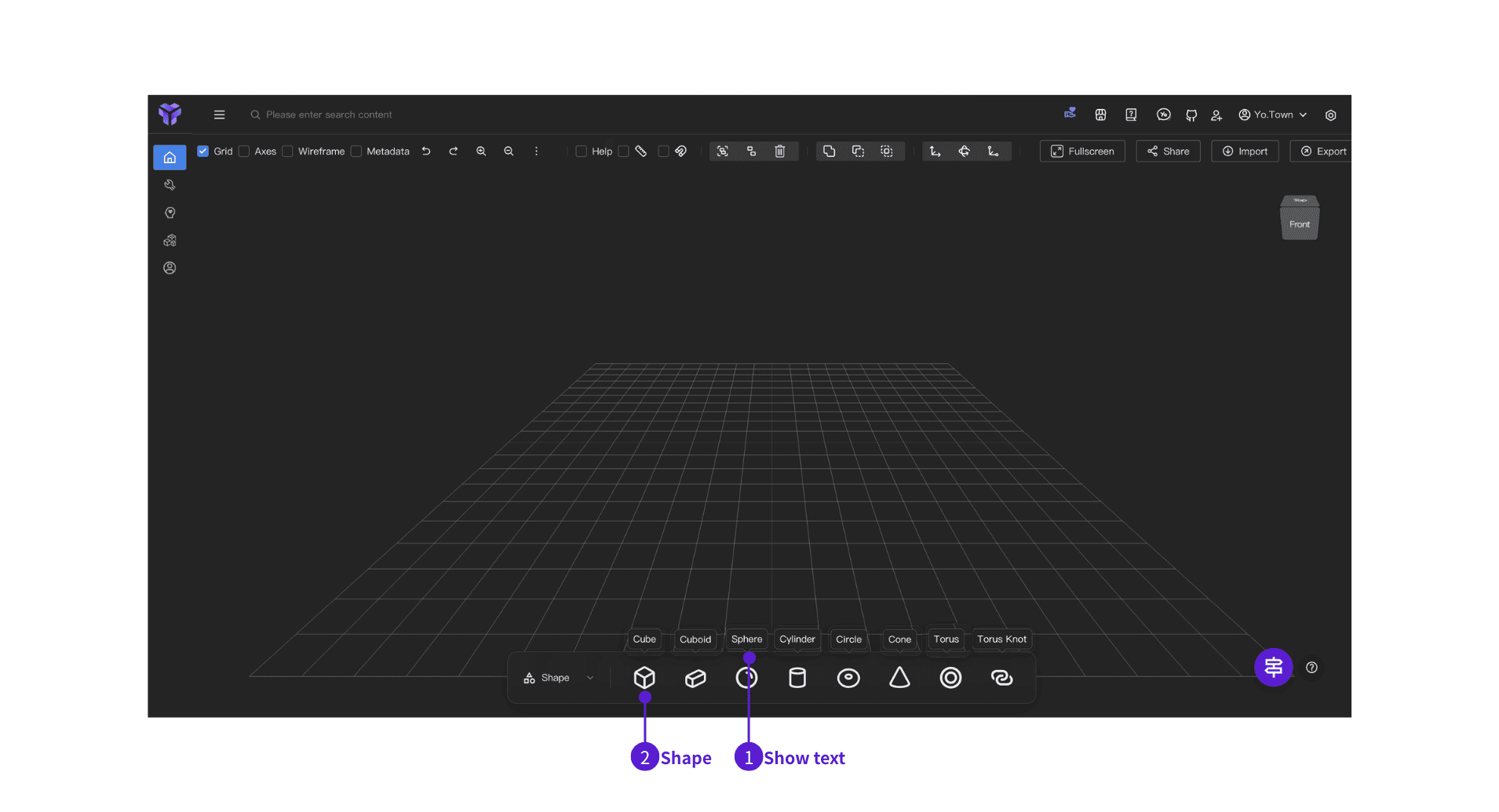
When "Geometry" is selected, it displays:
- ⓵ Hover a geometry icon to see its label
- ⓶ Click a geometry icon to create the corresponding shape in the 3D view
FAQ
Q: How to precisely align models?
A: Enable Magnetic Mode. When moving models, they snap to another model for precise alignment and connection.
Q: Can I edit multiple models simultaneously?
A: Yes, first select multiple models (using multi-select), then use the group function to combine them, and you can edit them together.
Q: What file formats are supported?
A: Supports importing .glb, .3mf, .stl, .obj, .ply, .fbx formats
Q: How to undo operations?
A: Use the undo button (↶) in the top toolbar to undo the previous operation.
Get Started Now
Click the button above to directly enter Yo.Town Maker's Playground and start your 3D creation journey!