YoCAD™ Modeling
YoCAD™ Modeling is Yo.Town 3D Maker's AI-powered 3D modeling feature. You can generate and iterate editable 3D models in the browser through natural language, code editing, or both. It is suited for fast concept validation, printable objects, and pre-production shape exploration. The underlying parametric CAD engine uses the OpenSCAD stack, while the user-facing product and UI are unified as YoCAD™.
Features
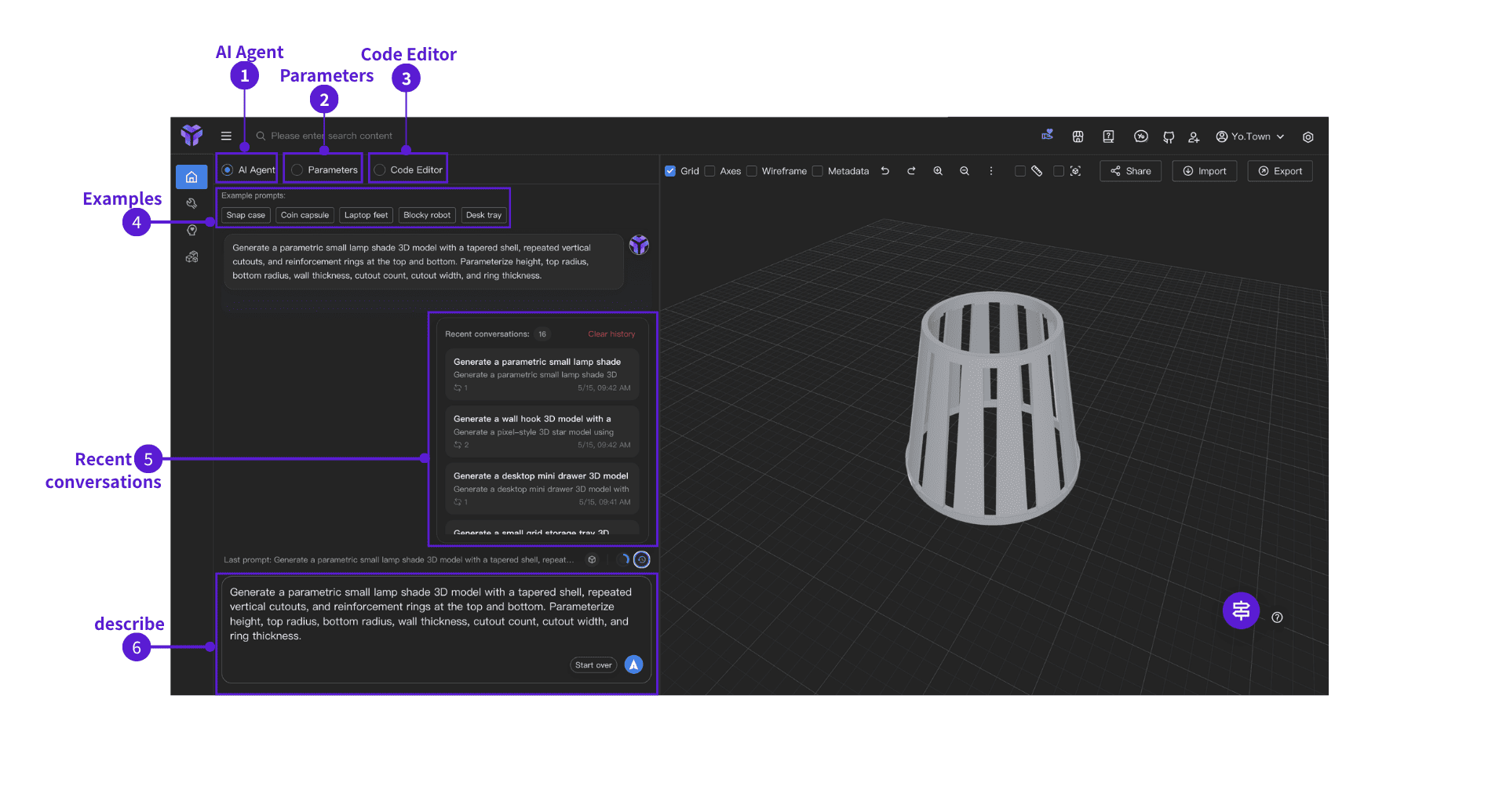
- ⓵ AI Agent: describe the 3D result you want, as in a chat
- ⓶ Parameters: drive the model through parameters for different outcomes
- ⓷ Code Editor: view and edit the script the tool generated for you
- ⓸ Example prompts: pick a ready-made line to try the flow once
- ⓹ Recent conversations: past turns stay here—handy when you keep working on the same thing
- ⓺ Content: type at the bottom in plain language what you want to make or change
Chinese or English both work—describe what you want the way you'd tell a friend. In ⓺ Content, say what you want and roughly how big; you don't need technical terms. The tool turns that into runnable script behind the scenes. The generated script appears in the ⓷ Code Editor; to change numbers or structure, click ⓶ Parameters in the top bar.
Parameters
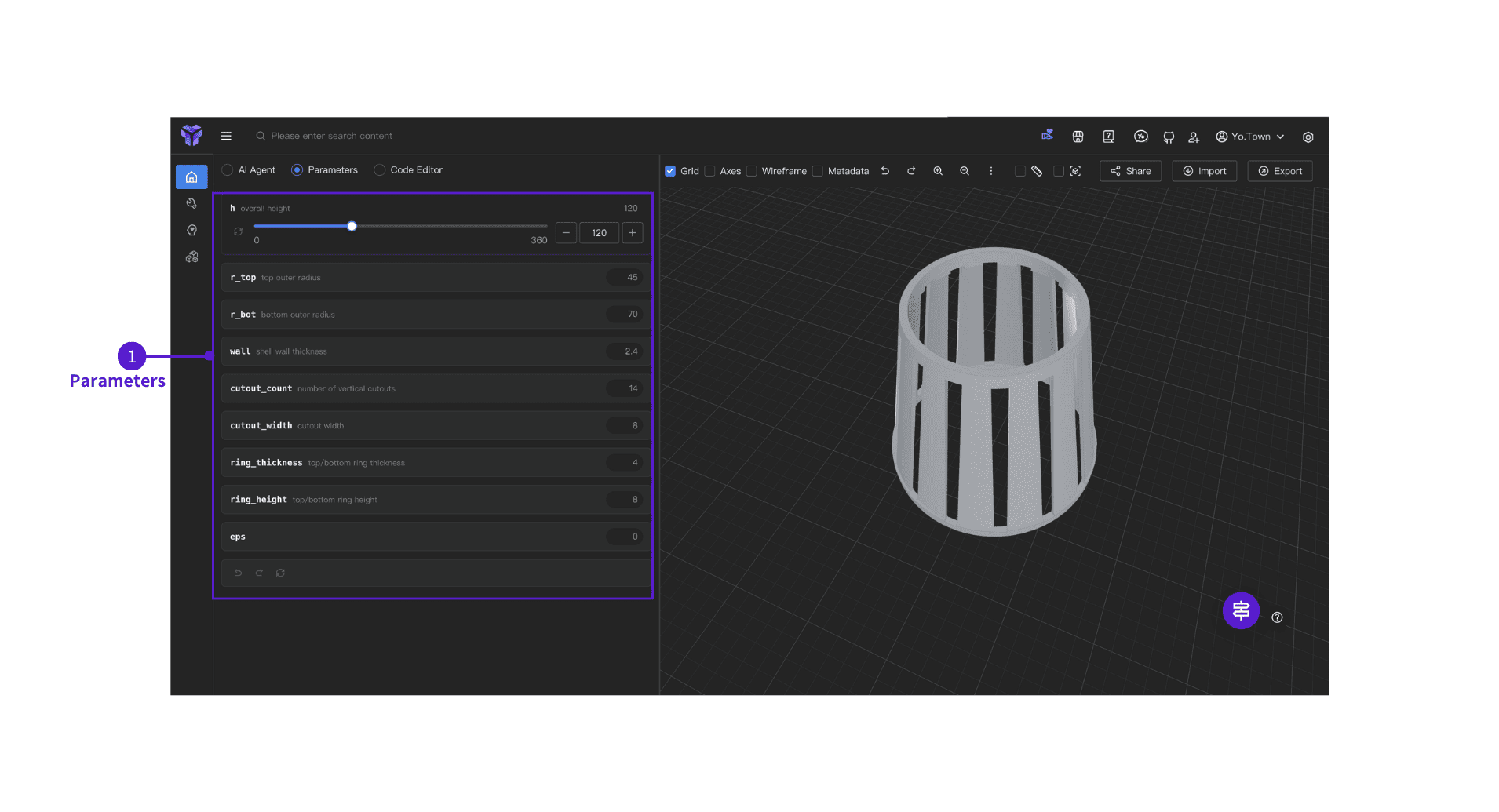
- After the model is generated, click ⓵ Parameters, adjust values in the panel, and preview different results in real time.
Code mode (Code Editor)
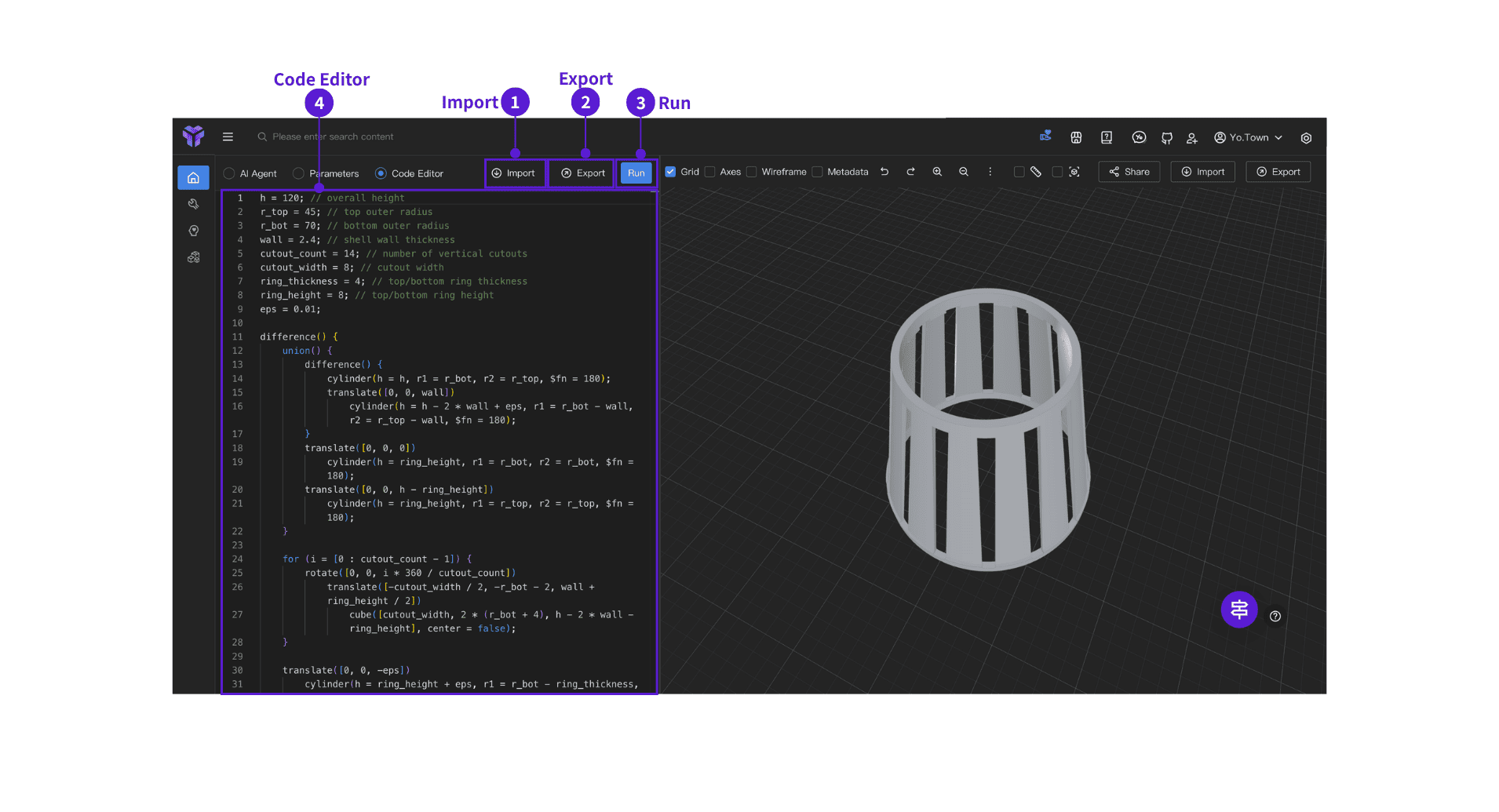
After switching to the ⓸ Code Editor, you're in code mode: parametric modeling with a YoCAD™-style script—code on the left, geometry on the right.
- Top bar
- ⓵ Import: import an existing YoCAD™ script
- ⓶ Export: export the current code as a YoCAD™ file
- ⓷ Run: After modifying the code, click Run to see the updated model.
Suggested flow (from first use to export)
Path A: start from chat (beginners)
- Open the AI Agent and click an example prompt to run through the whole flow.
- Start with one sentence in the input area; if the result is off, add more detail (size, purpose, what to change).
- The tool auto-generates YoCAD™-style code and runs it automatically after generation; the model refreshes on the right.
- If you're happy with the result, click ⓶ Parameter adjustments, tune values in the panel, and preview different outcomes in real time.
- If it's still not right, switch to the ⓷ Code Editor (code mode), edit variables and parameters in the code, then click Run manually to see the updated model.
Path B: start from code (if you already know scripting)
- Go straight to the ⓸ Code Editor, import a script, or start from blank.
- Use variables and comments to keep parameters clear; click Run to check the geometry on the right.
Generation may occasionally fail; that is normal. Try a different prompt, or edit the code manually.
FAQ
Q: What if the result doesn't match what I imagined?
A: Add constraints (size, proportions, wall thickness, hollow or solid, etc.) or describe it in steps (main body first, then details).
Q: Do I have to know YoCAD™?
A: No. You can rely entirely on natural language at first; open the code editor when you need it.
Get started
In Yo.Town Maker, open YoCAD™ Modeling, then follow the flow above.